How to Access Plans & Billing and Create a New Subscription in HelloLeads CRM
A step-by-step guide to viewing plan options, configuring user seats, and completing secure checkout via Stripe.
HelloLeads CRM makes it simple to manage your account subscription and scale your team as your business grows. This guide walks you through navigating to the Plans & Billing section from your web dashboard, selecting the right plan and billing frequency (Monthly or Yearly), reviewing your billing details, and completing your payment securely through Stripe Checkout.
Access billing directly from your Settings menu anytime.
Choose between convenient Monthly or discounted Yearly cycles.
Add precisely the number of user licenses your team requires.
Bank-grade encrypted checkout via Card or Cash App Pay.
Log in to Your HelloLeads Account
Begin by opening the web browser and signing in to your HelloLeads account.
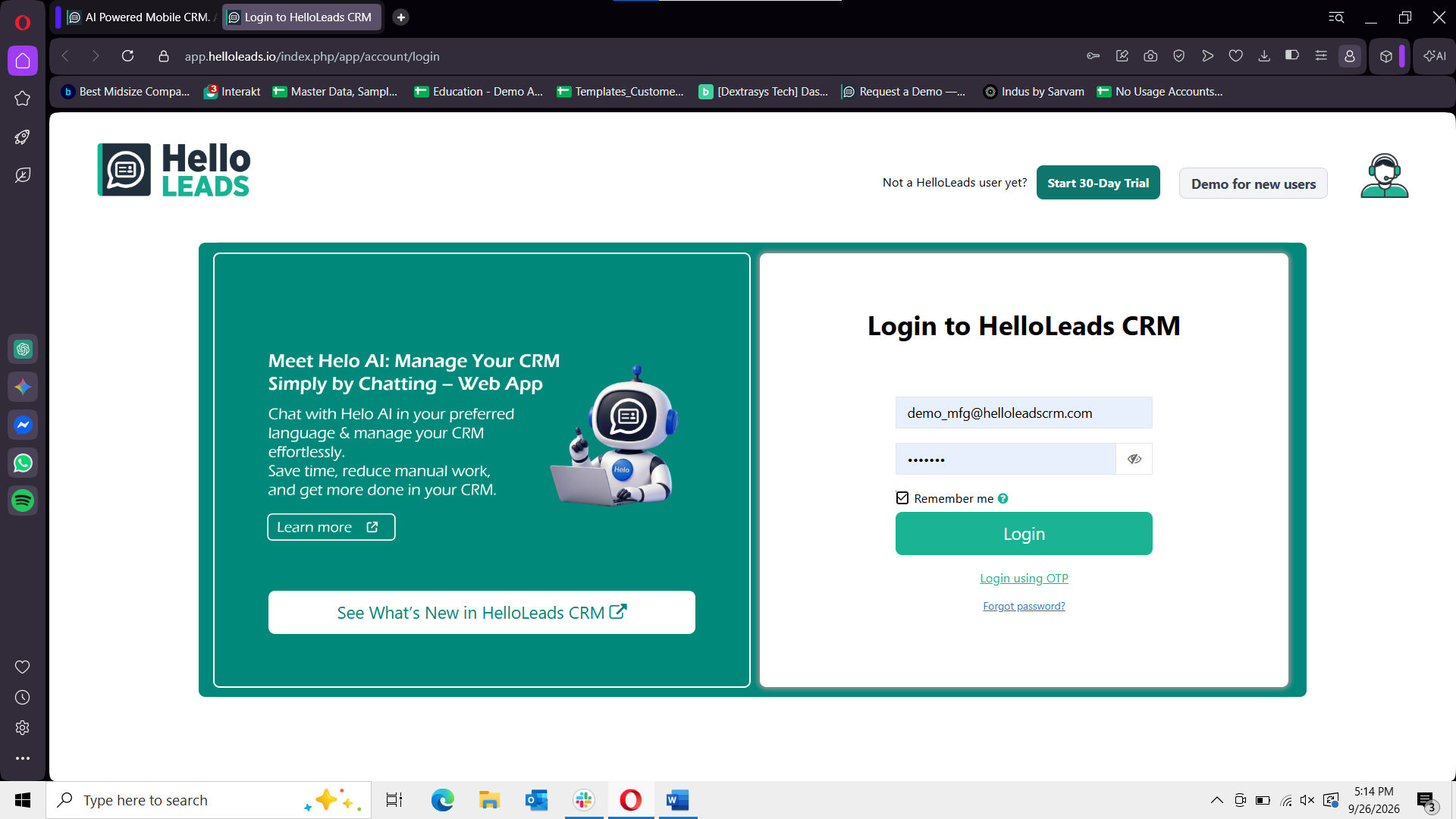
- 1 Access the HelloLeads Web app login page (https://app.helloleads.io/index.php/app/account/login) in your web browser.
- 2 Enter your HelloLeads CRM login credentials (email and password) to access your HelloLeads CRM account dashboard.
Access Settings Screen
Open the global settings menu from your account workspace.
-
1
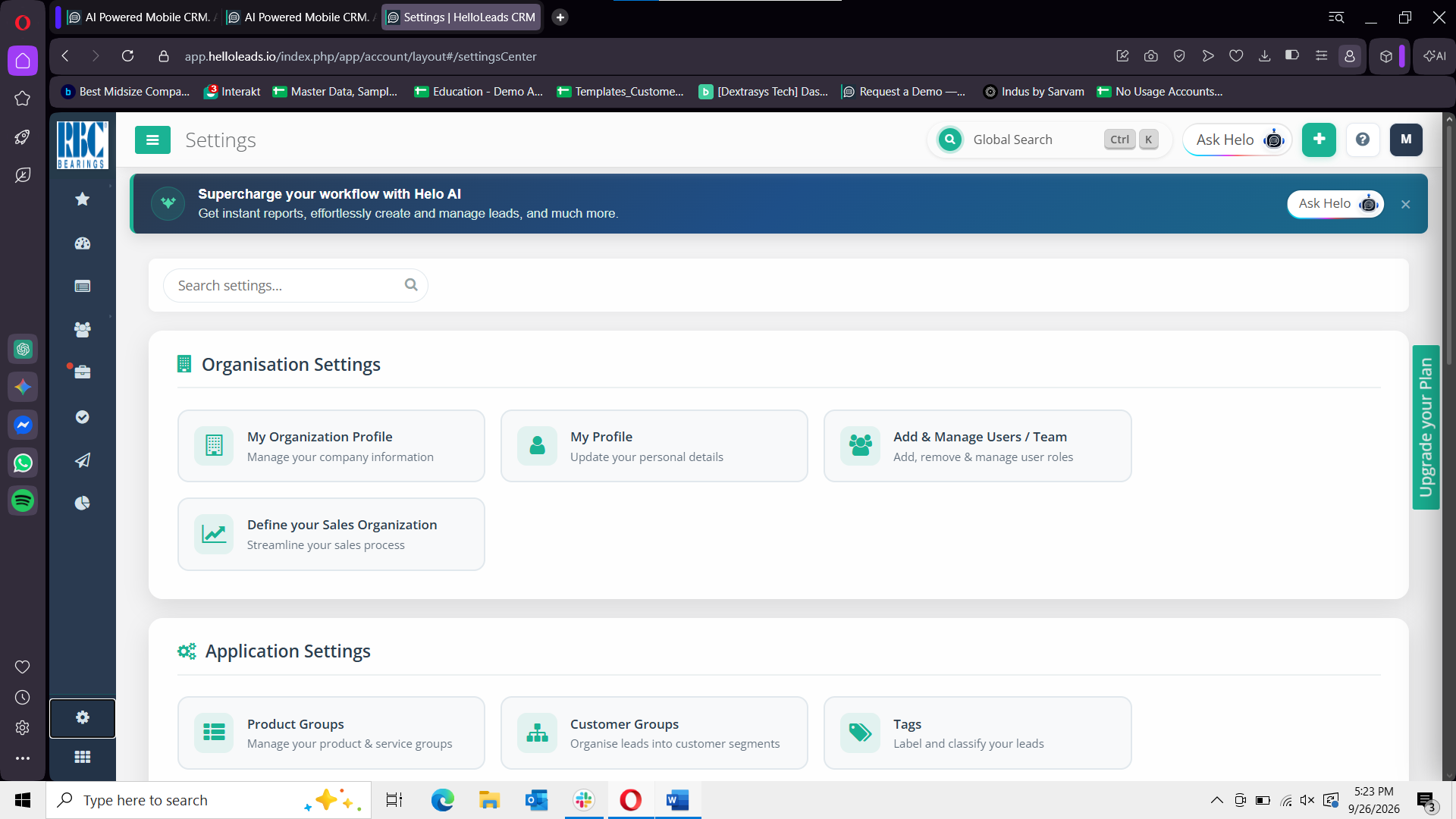
After logging in to your HelloLeads account, locate the Gear icon
(
 )
in the bottom-left corner of the sidebar and click on it to access the Settings page.
)
in the bottom-left corner of the sidebar and click on it to access the Settings page.
Navigate to Plans and Billing
Locate the subscription and account management options on your Settings screen.
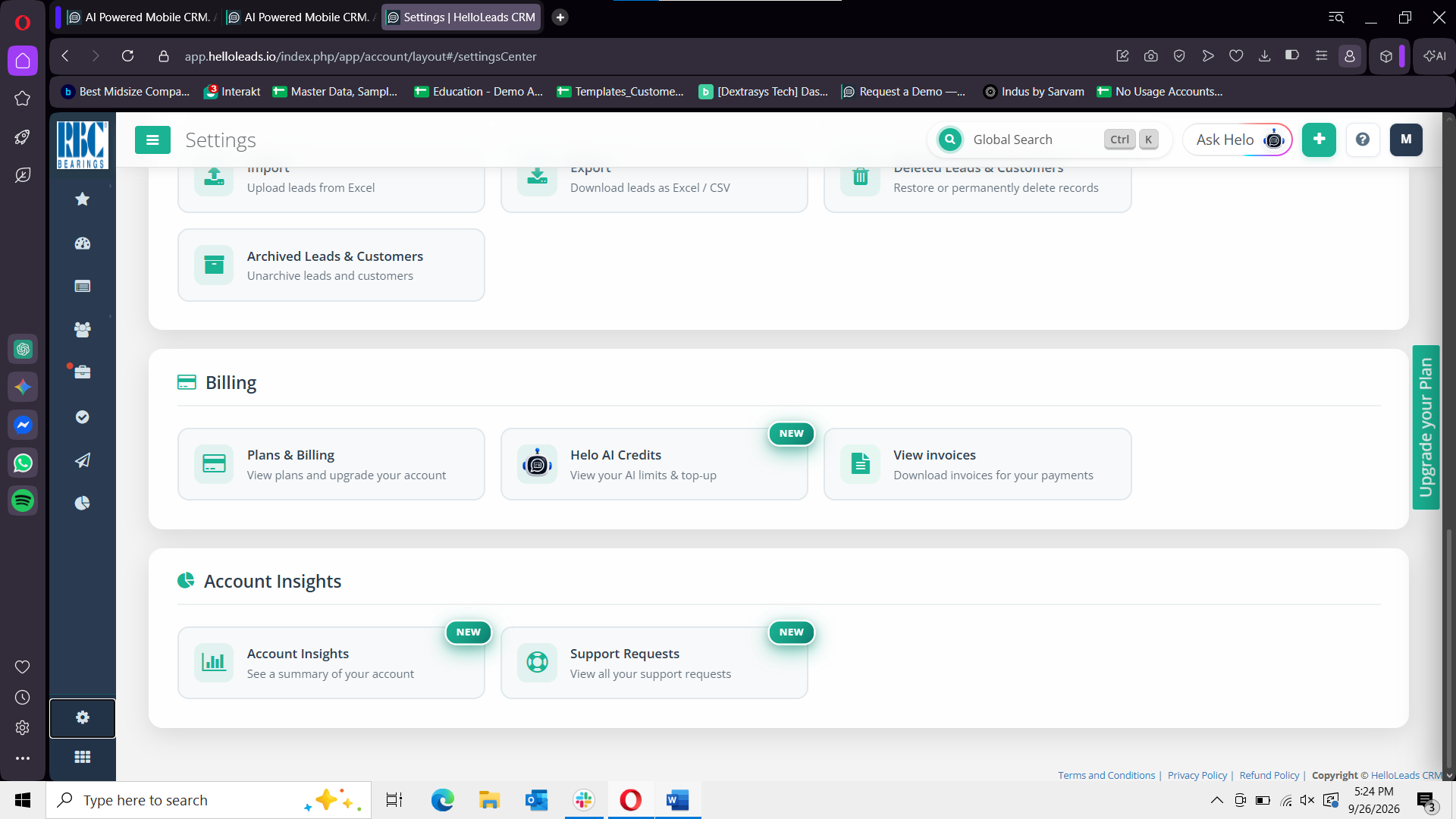
- 1 Scroll down the Settings page to find the account and billing configuration section.
- 2 Locate and click on Plans and Billing.
Configure Your Subscription Plan
Customize your plan tier, billing cycle frequency, and user seats on the Upgrade or Renew page.
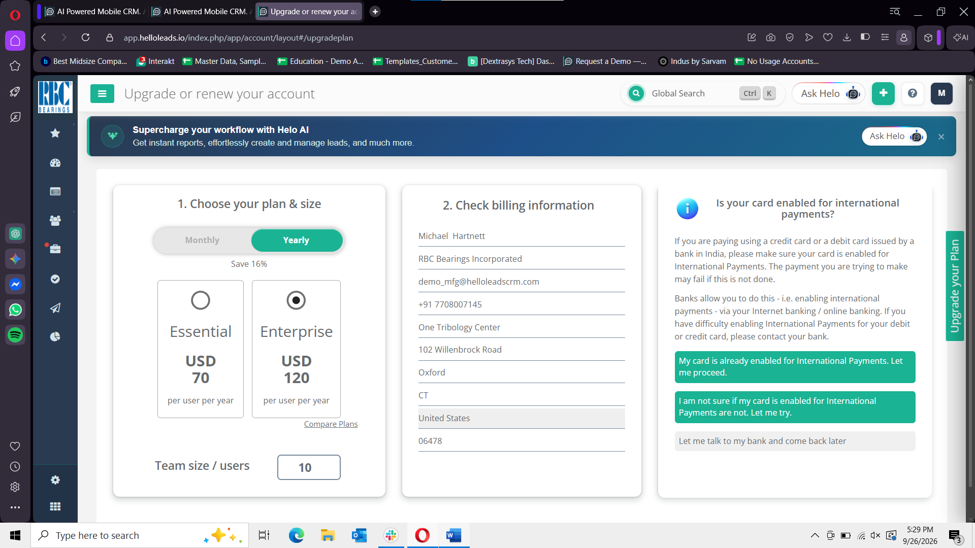
You will be redirected to the Upgrade or Renew Your Account page, where you can view and manage your subscription plan:
- 1 Select Frequency: Choose your preferred subscription frequency — Monthly or Yearly.
- 2 Choose Plan: Select your desired plan based on your business requirements and feature needs.
- 3 Configure User Seats: Choose the required number of users for your account to ensure your entire team has access.
- 4 Review Billing Details: Review and confirm your billing address, contact details, and order calculation.
- 5 Proceed: Click the Pay button to proceed with the payment.
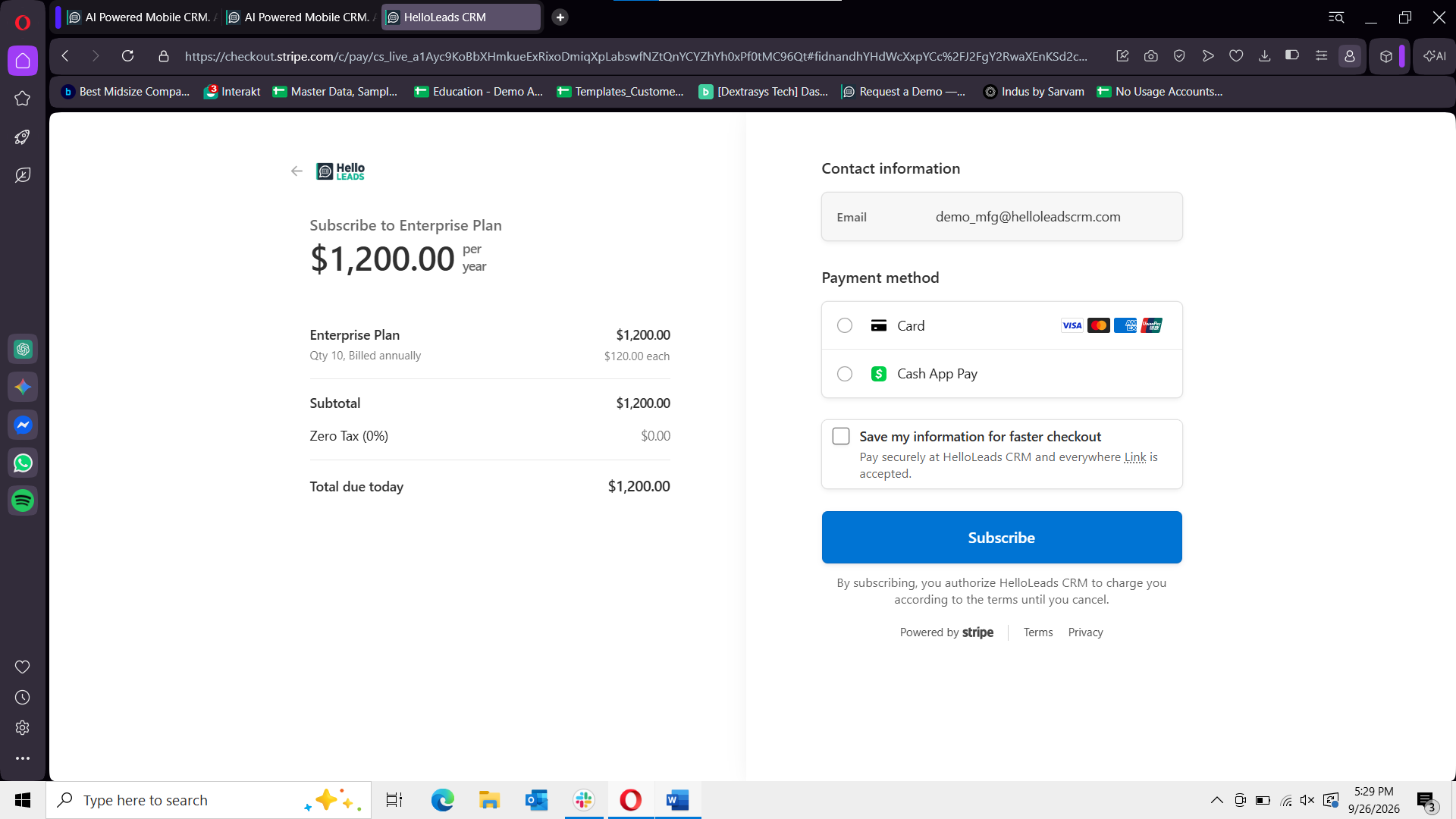
Complete Payment & Activate Subscription
Finalize your transaction securely through Stripe Checkout to activate your subscription.
- 1 Select Payment Method: Choose your preferred payment option — Card (Credit / Debit Card) or Cash App Pay.
- 2 Enter Payment Details: Fill in the required details including Card number, Expiration date, CVC, and Cardholder name.
- 3 Review Summary: Review the payment summary and recurring billing terms to ensure all details are accurate.
- 4 Subscribe: Click Subscribe to complete the payment and activate your subscription immediately.