Everything Visible at Once
See lead profile, qualifiers, and activities simultaneously without switching screens or excessive scrolling.
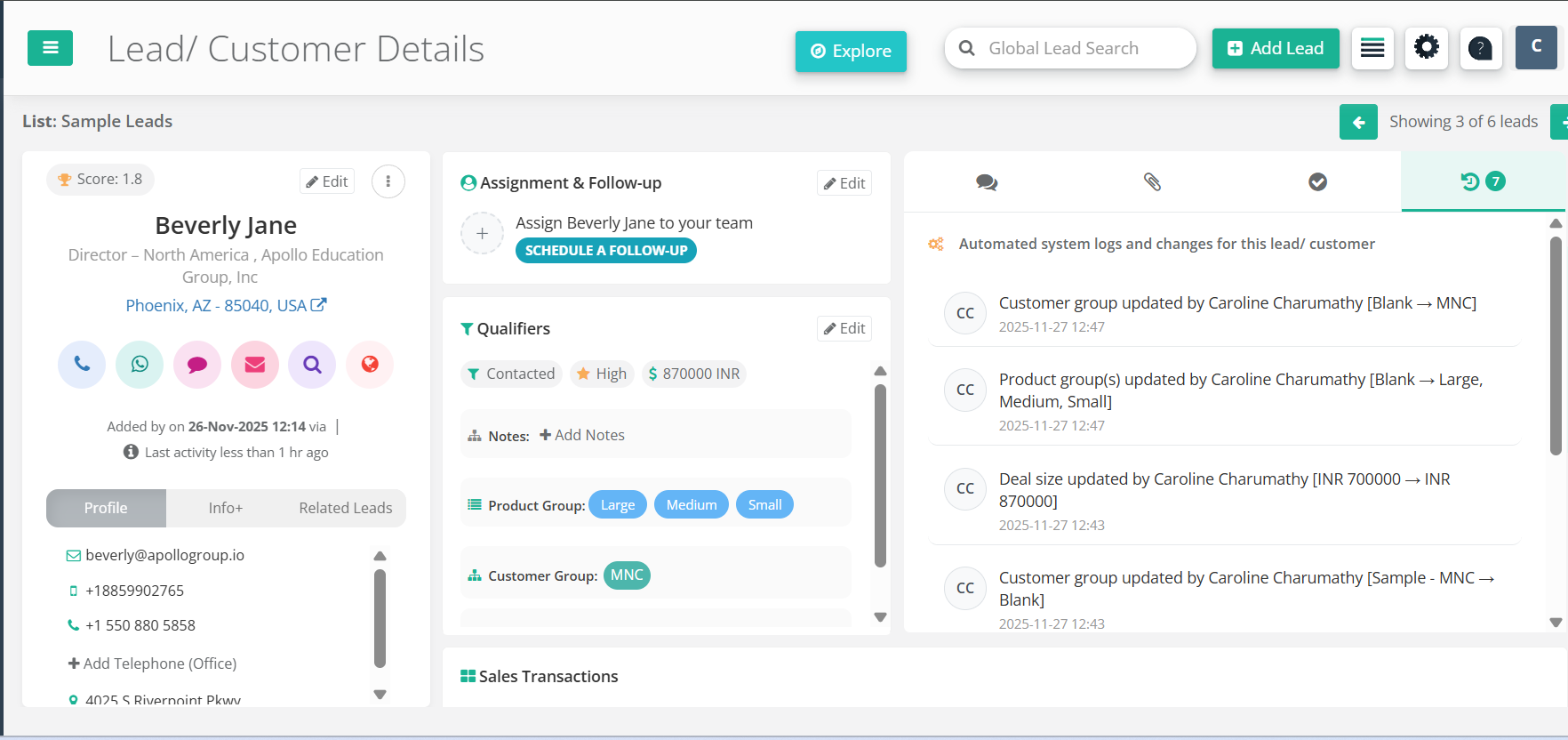
The Lead Details page brings together everything you need to manage your leads effectively. This intelligent interface organizes all lead information, communication history, and management tools in one streamlined view, designed for maximum productivity and ease of use.
The Lead Details interface is designed around three core areas, each optimized for specific tasks and workflows:
Edit lead information, view contact details, and access quick action buttons for calls, emails, and messages.
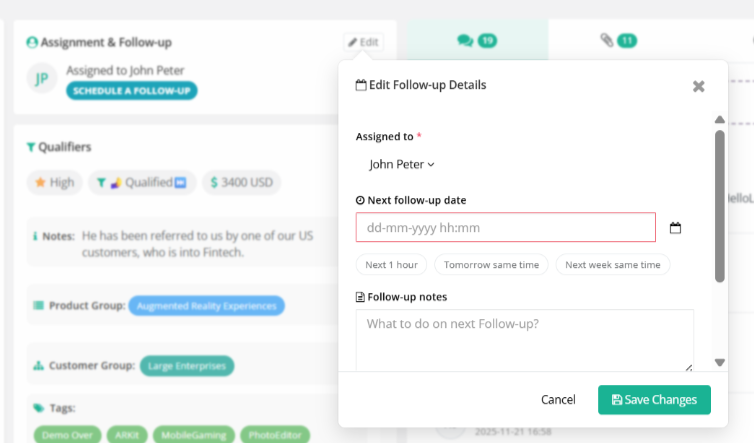
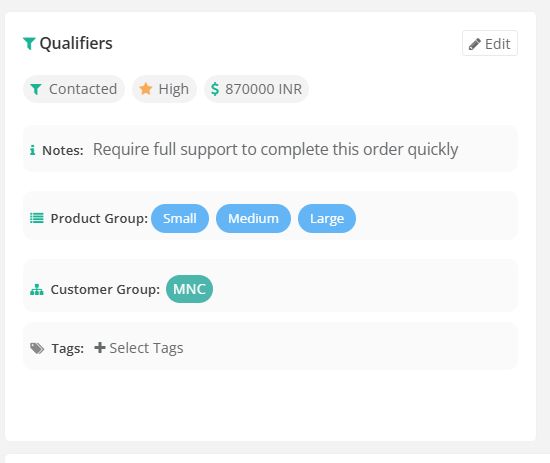
Assign leads, set follow-ups, add qualifiers, and categorize leads for better pipeline management.
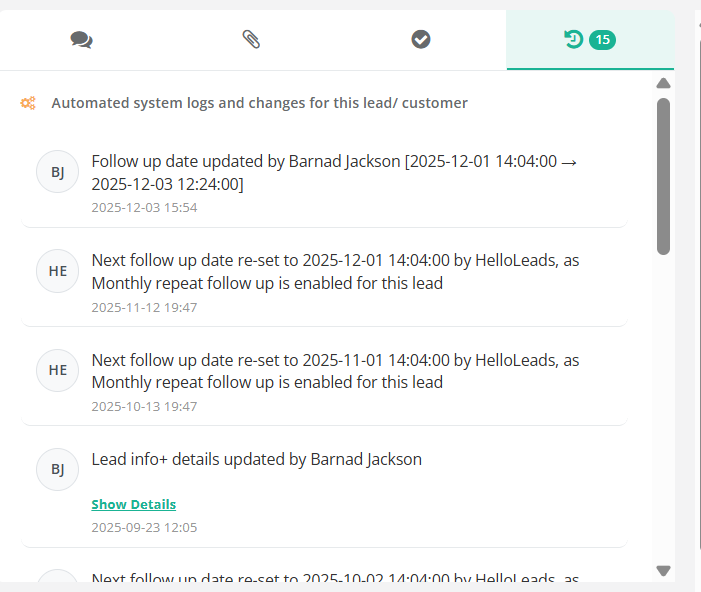
Add comments, attach files, manage tasks, and review complete interaction history.
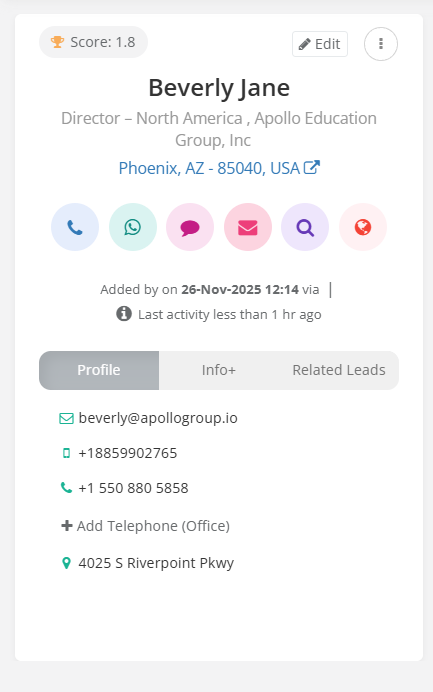

Click the "Edit" button in the profile section to update lead information. Changes save immediately without page reloads.
Look for "+" buttons next to qualifier sections. Click to add potential levels, stages, deal sizes, and custom custom fields.
Use the activity tabs to add comments, upload files, create tasks, and review the complete detailed lead history.
Click user avatars in the assignment section to reassign leads and set follow-up dates with integrated calendar picker.
The Lead Stage Journey provides a complete visual timeline of how a lead progresses through your sales process. It helps your team quickly identify the current stage, review previous stage movements, monitor the time spent in each stage, and track SLA compliance—all from a single view.
The lead's current stage is highlighted with a filled color, making it easy to identify its current position in the sales journey.
Each stage represents a milestone in your sales process. Stages that have not been assigned to the lead remain unfilled.
The value displayed below each stage (for example, 0 d, 1 d, or 2 d) indicates the number of days the lead has spent in that stage.
For stages with an SLA configured, a colored indicator shows the current SLA status:
Use the Previous and Next arrows ( / ) to scroll through all configured lead stages.
Click the Refresh icon () to reload the Lead Stage Journey and display the latest stage information.
Designed for efficiency and user productivity
See lead profile, qualifiers, and activities simultaneously without switching screens or excessive scrolling.
Separate tabs for different activity types help you find exactly what you're looking for quickly.